
How to Create a Direct Message
What is a Direct Message?
A direct message is a real-time, digital communication delivered straight to a guest’s in-room device.
It’s commonly used to share timely information such as welcome greetings, service updates, event reminders, special offers, or personalized messages from the hotel team.
In short, it’s a modern, personalized way for hotels to communicate directly with guests in their room, replacing traditional paper notices or phone calls with a seamless digital touchpoint.
How to Create a Direct Message
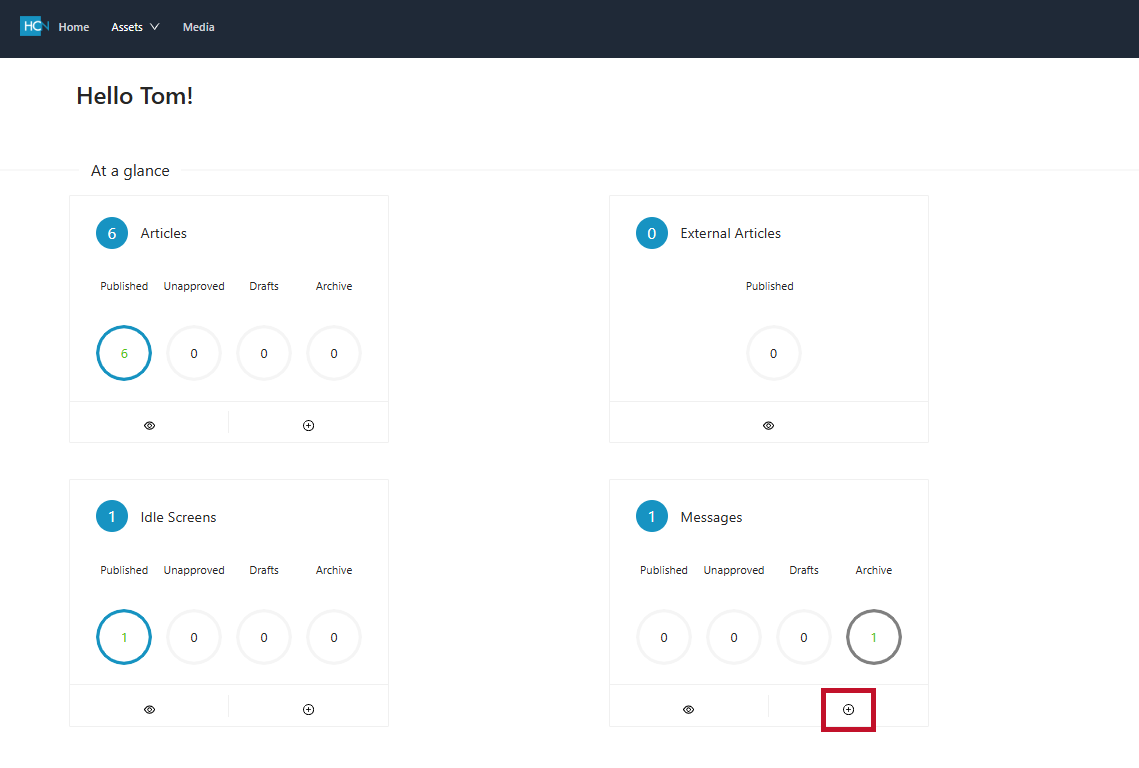
- Open HCN CMS.
- Press the plus (+) icon on Messages to create a new message
Configuring the Direct Message Content
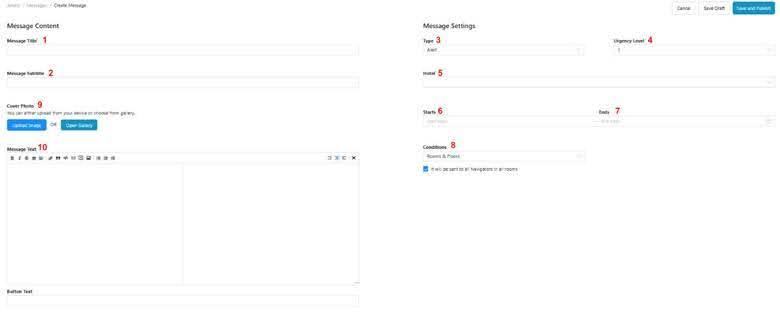
- Message Title
The primary title of the Message - Message Subtitle
A place for a short, promotional phrase or description - Type of Message
A drop down to select the style of message from Alert, Notice and Modal. - Urgency Level
A drop down to select urgency level. This is almost always set to 1. - Hotel
Select hotel from drop down. The only option will be the current hotel. - Start Time
Select the date and time to begin your direct message. - End Time
Select the date and time to end your direct message. - Conditions
If a direct message should only be available for a specific group of rooms, this can be configured here. If the Article should be visible for all rooms, simply ensure the appropriate tick box has been selected under the field. - Cover Photo
The image presented behind your lines of text. Please use the correct DM template to ensure your image is cropped correctly, and the fade filter is present to increase readability of your message. - Message Text
The message text box is where all text for the message is written. The Description field supports fully HTML markdown for text formatting and the insertion of images files and PDFs into it. To include any images or PDFs, these files should first be uploaded to the media gallery as Article Media.
Publish the Message
- Select Save and Publish
- No additional steps are necessary to publish the message.