
How to Configure a Swimlane
What is a Swimlane?
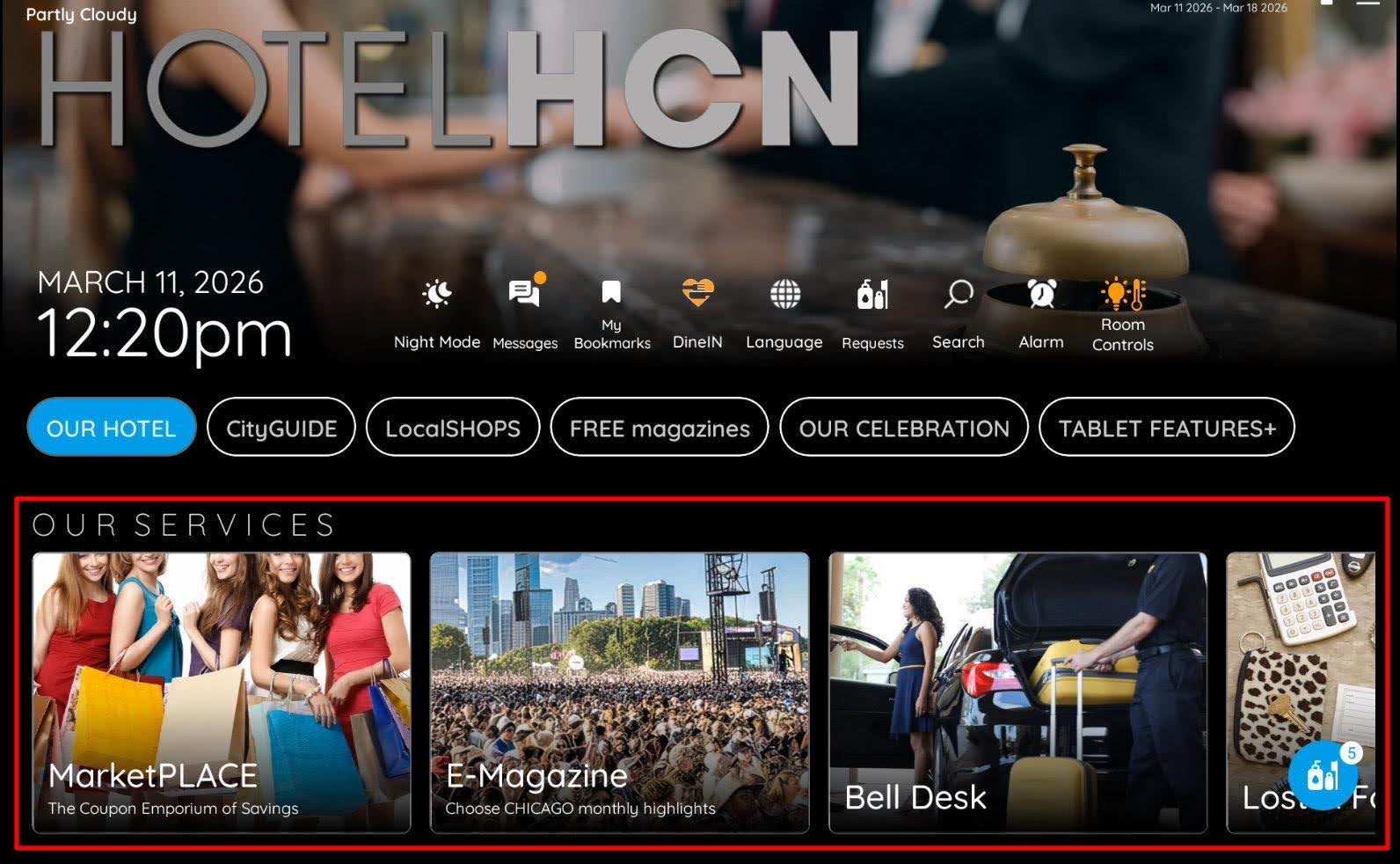
A Swimlane is a repository for Articles covering similar topics. For example, you may have a Swimlane titled Restaurants & Bars which contains Articles dedicated to each option.
Swimlanes sit inside Categories.
How to Create a Swimlane
- Open the HCN CMS.
- Press the eye icon on the Category window.
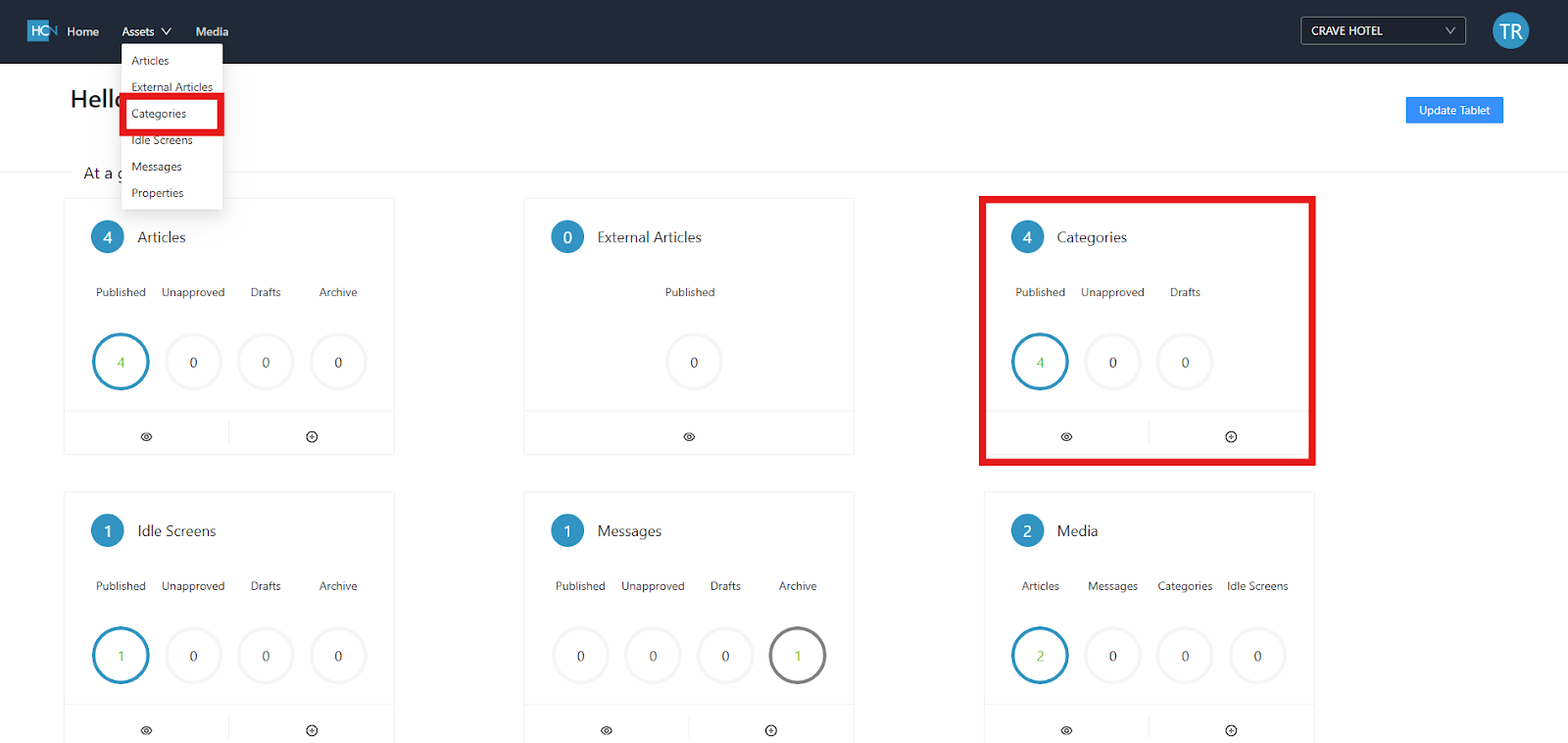
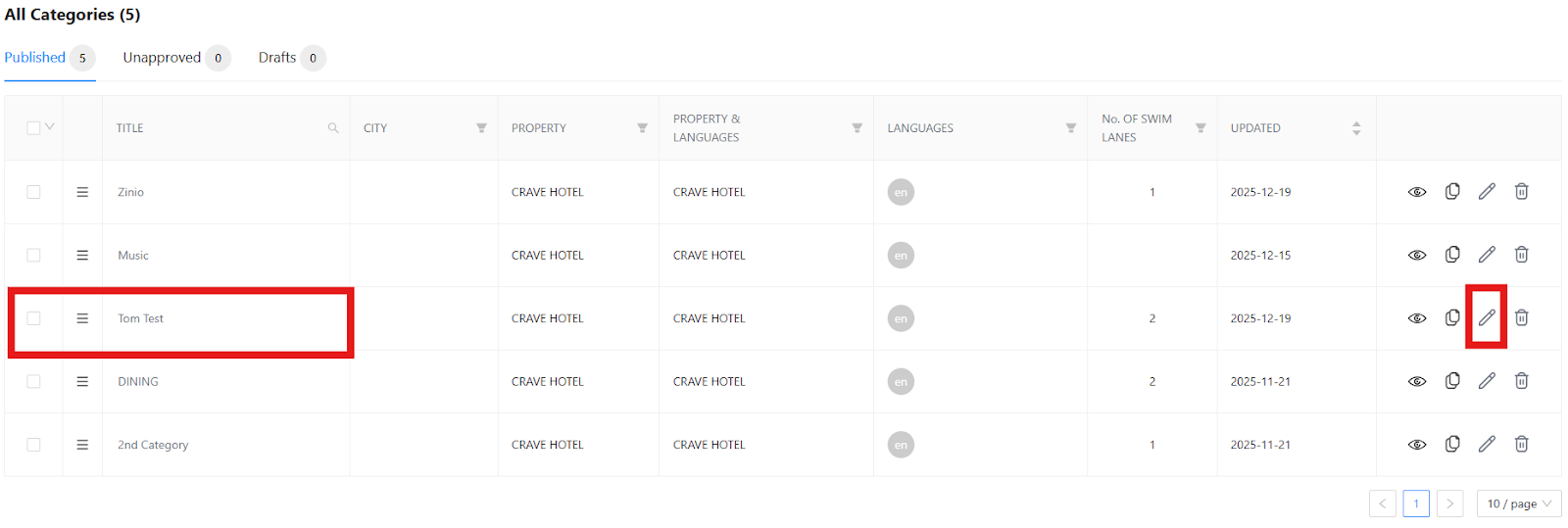
3. Identify the Category you want to add the Swimlane to. Select the edit icon at the end of its row.
4. Scroll down to the bottom of the Category, where you will find the Swim Lanes section.
5. Select the Add a row button. This will create a Swimlane placeholder.
6. Select the Edit button on the Swimlane placeholder.

7. First, give the Swimlane a guest-friendly name.
8. In the Type field, select Large. Medium is not used as part of best practice.
9. Select the Save button.
10. The Swimlane has now been created. To save the change to the Category, select the Save and Publish button at the top of the page.

Please note: If there are no Articles in the Swimlane, the Swimlane will not appear on the tablet.
Adding Articles to a Swimlane
For a Swimlane to appear on the tablets, at least one Article will need to be applied to it. To apply Articles to the Swimlane, follow the below steps:
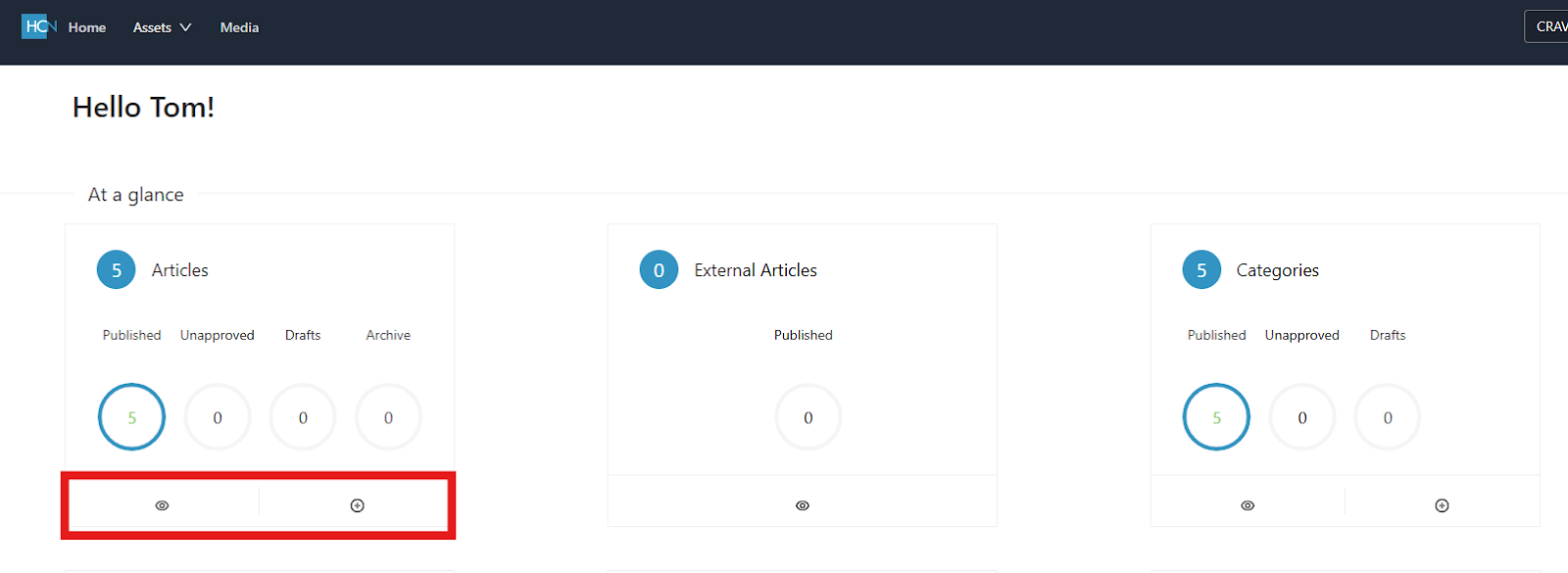
- From the Home tab of the CMS, press the view button under Articles to search for an existing Article. Press the plus button under Articles to create a new Article.
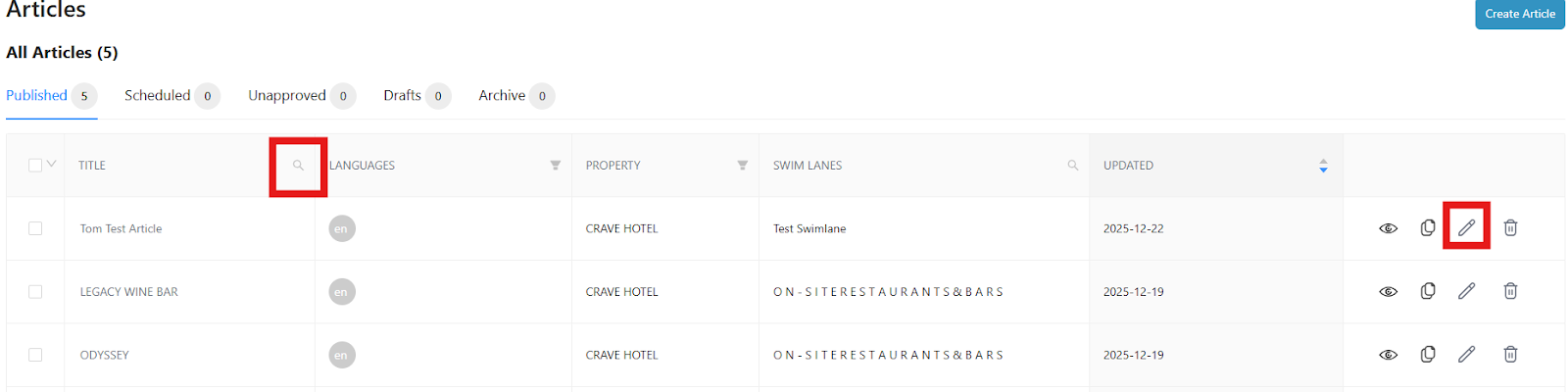
2. When searching for an existing Article, you can either browse manually or use the looking glass icon to search for Articles based on key words. Once the Article has been identified, press the pencil edit icon at the end of its row.
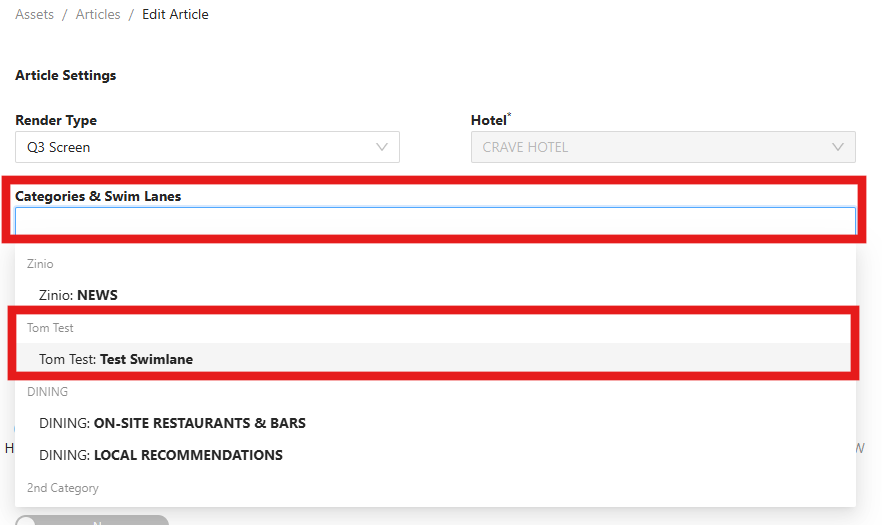
3. To apply an Article to a Swimlane, navigate to the Categories & Swim Lanes field.
4. Clicking on the field will provide you with a list of available Swimlanes, divided by the Category they belong to.
5. Simply click a Swimlane to apply it. Multiple Swimlanes can be selected here for the Article to appear in multiple locations.
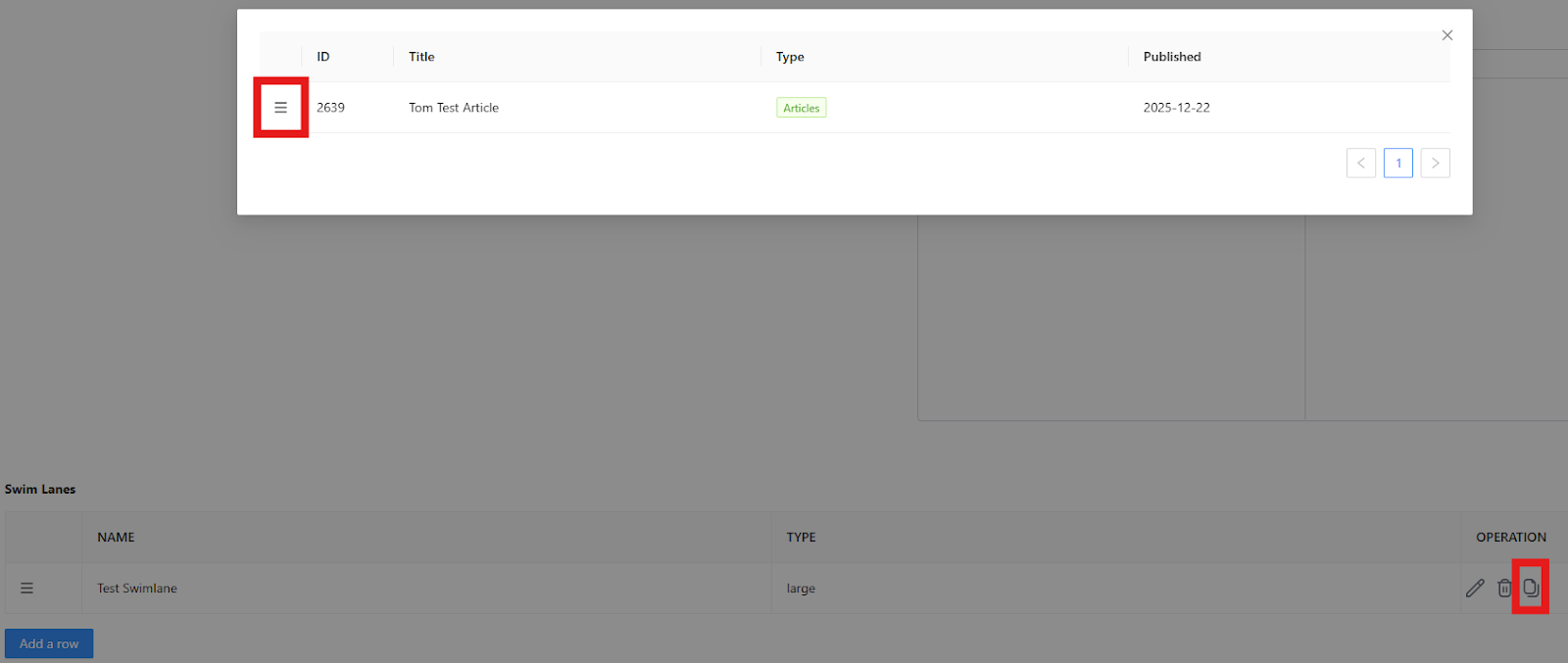
6. When all Swimlanes have been selected, Save and Publish the changes to the Article using the appropriate button at the top of the page.
Publish the Swimlane
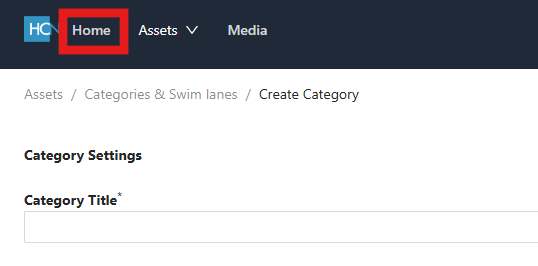
- To publish the new Swimlane, navigate back to the main CMS page by selecting the Home button in the navigation bar.
2. Select Update Tablet in the top-right corner.
3. Select the company you want to refresh, and press the OK button.
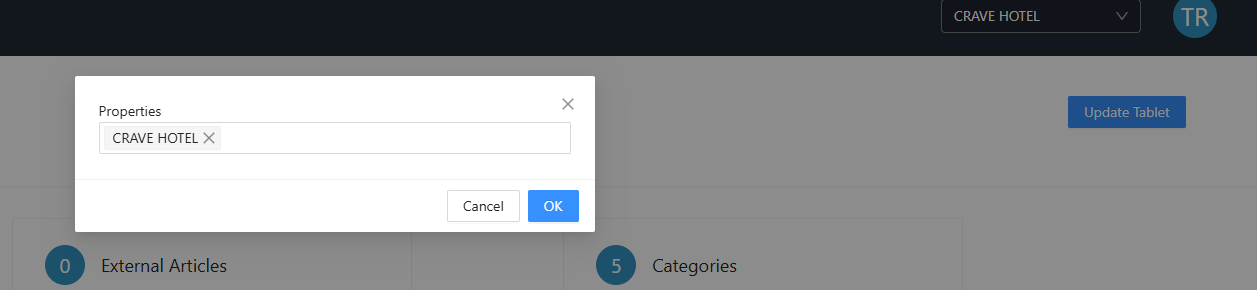
4. The tablets shall then restart shortly and your Swimlane shall appear.