
How to Configure a Category
What is a Category?
A category is the primary method of dividing content on the HCN solution based on topic and acts as a parent to Swimlanes and individual Articles.
Categories can be configured for different requirements, whether this is standard hotel content, a curated selection of publications via Zinio, or free music streaming via Stingray.
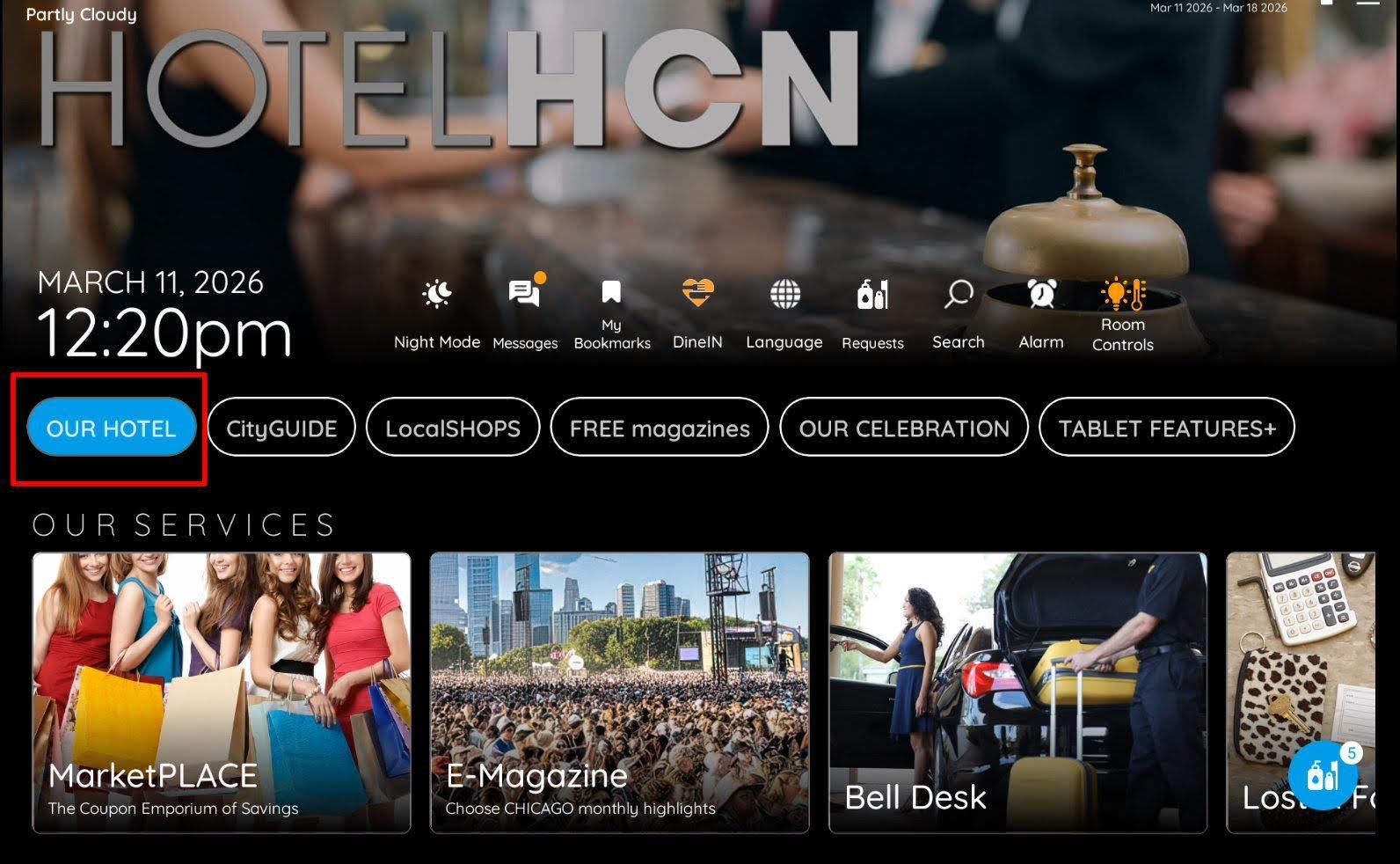
How to Create a Category
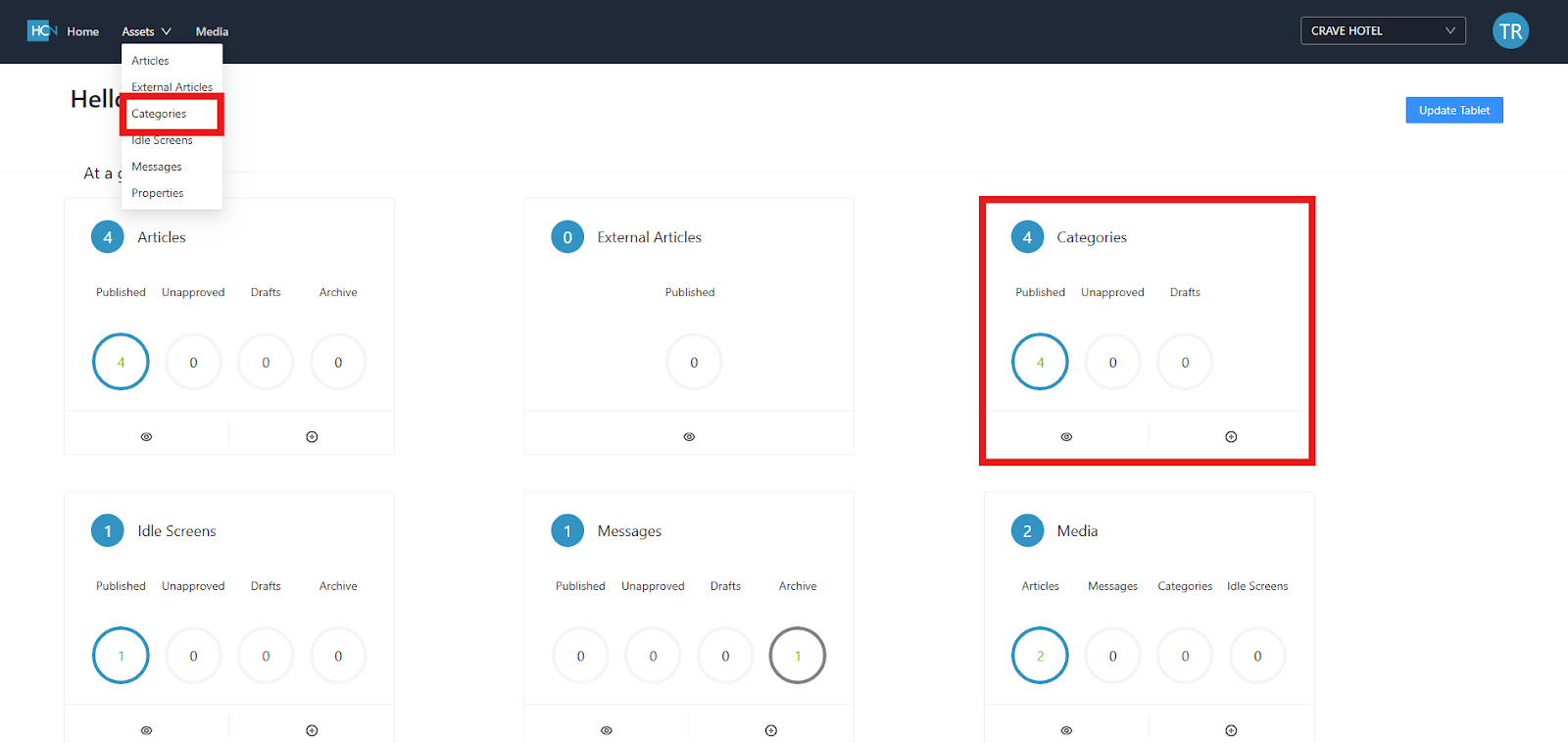
- Open the HCN CMS.
- Press the plus icon on the Category window.
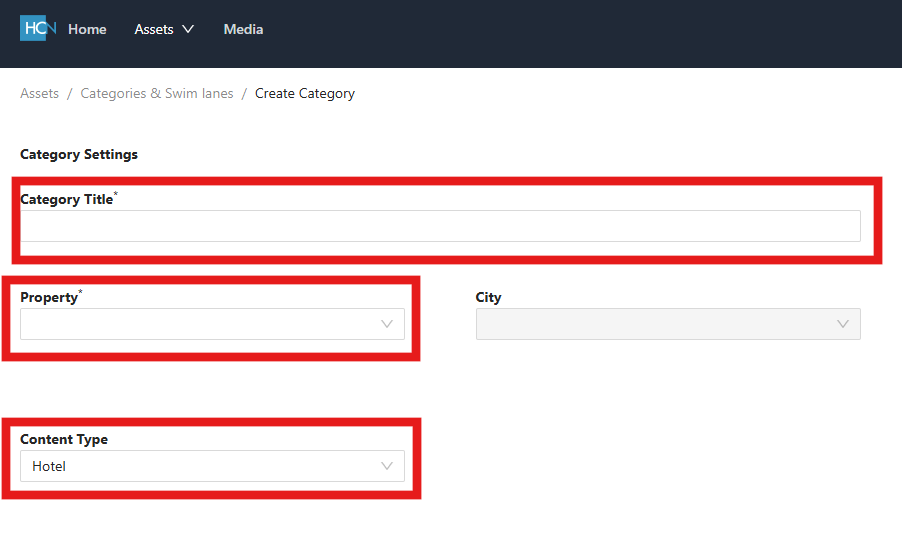
Configure Category Settings
- Enter your Category Title. Ensure this is guest friendly.
- In the Property field, select the property this category should apply to.
- The Content Type field dictates the function of the category.
a. Hotel: this is for standard content containing traditional Swimlanes and Articles.
b. Zinio: select this option if you intend this to host magazine content.
c. Music: select this option if you intend this to host free music from Stingray.
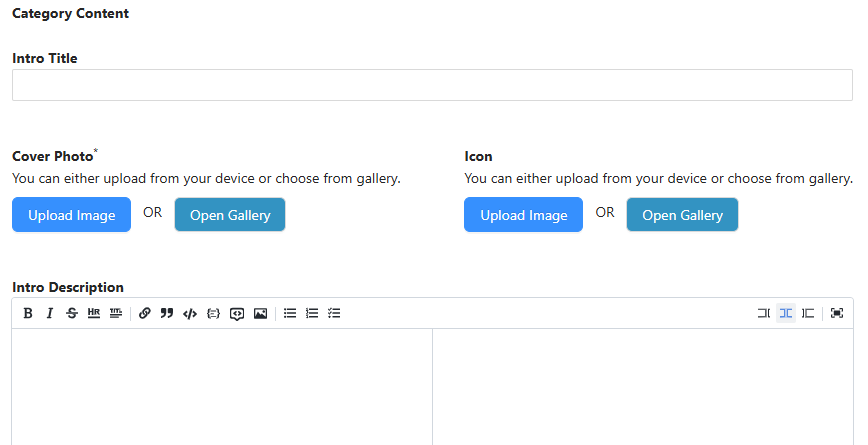
Configure Category Content
- Ignore the Intro Title and Intro Description fields.
- The Cover Photo field allows you to configure a hero image which will display across the top of the tablet’s screen when the category is selected. Select the Upload Image button and choose a local file to upload.
b. Note 1: For best practice, ensure the image you’re uploading has been created within the relevant Category Image template or to the resolution 2000×600 pixels.
c. Note 2: If your Category Image is going to be used for multiple categories, upload it to the Media Gallery using the Uploading Media guide and instead select the Open Gallery button in the Cover Photo section. - The Icon section allows you to configure a thumbnail for the category button on the tablet. According to best practice, we should not do this.
4. Finally, scroll to the bottom of the page and add an initial Swimlane to your Category. Refer to the How to Configure a Swimlane guide for specific steps. Please note that the information for this Swimlane does not need to be finalized at this point.
Publish the Category
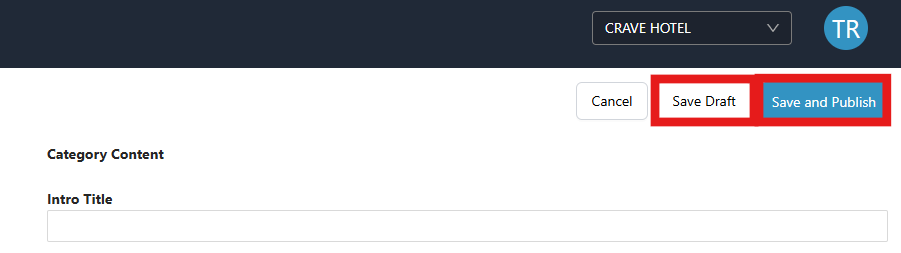
- To publish the new category, navigate to the top-right of the page and select the Save and Publish button. If the category is not to go live yet, select the Save Draft button.
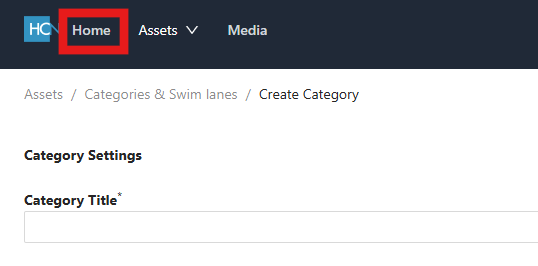
2. Navigate back to the main CMS page by selecting the Home button in the navigation bar.
3. Select Update Tablet in the top-right corner.
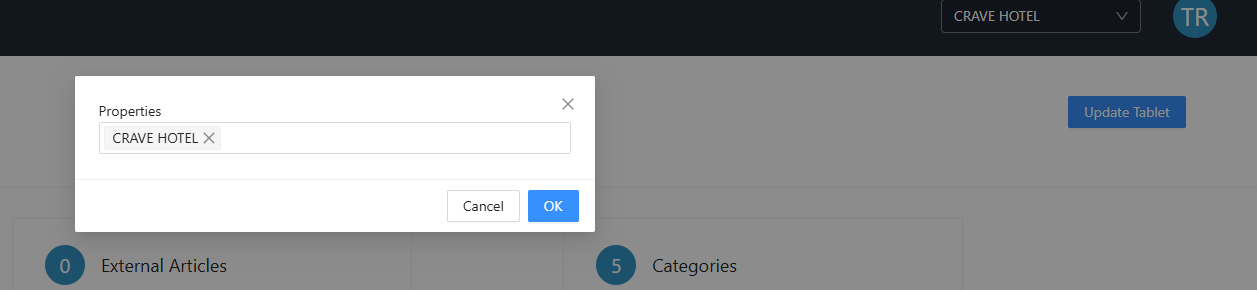
4. Select the company you want to refresh, and press the OK button.
5. The tablets shall then restart shortly and your category shall appear.
Note: Categories will only appear on the HCN tablet if they have at least one Swimlane AND one Article.